> ## Documentation Index
> Fetch the complete documentation index at: https://mentionscout.com/docs/llms.txt
> Use this file to discover all available pages before exploring further.
# Set up crawler tracking
> Connect your site so MentionScout can record AI crawler visits and clicks.
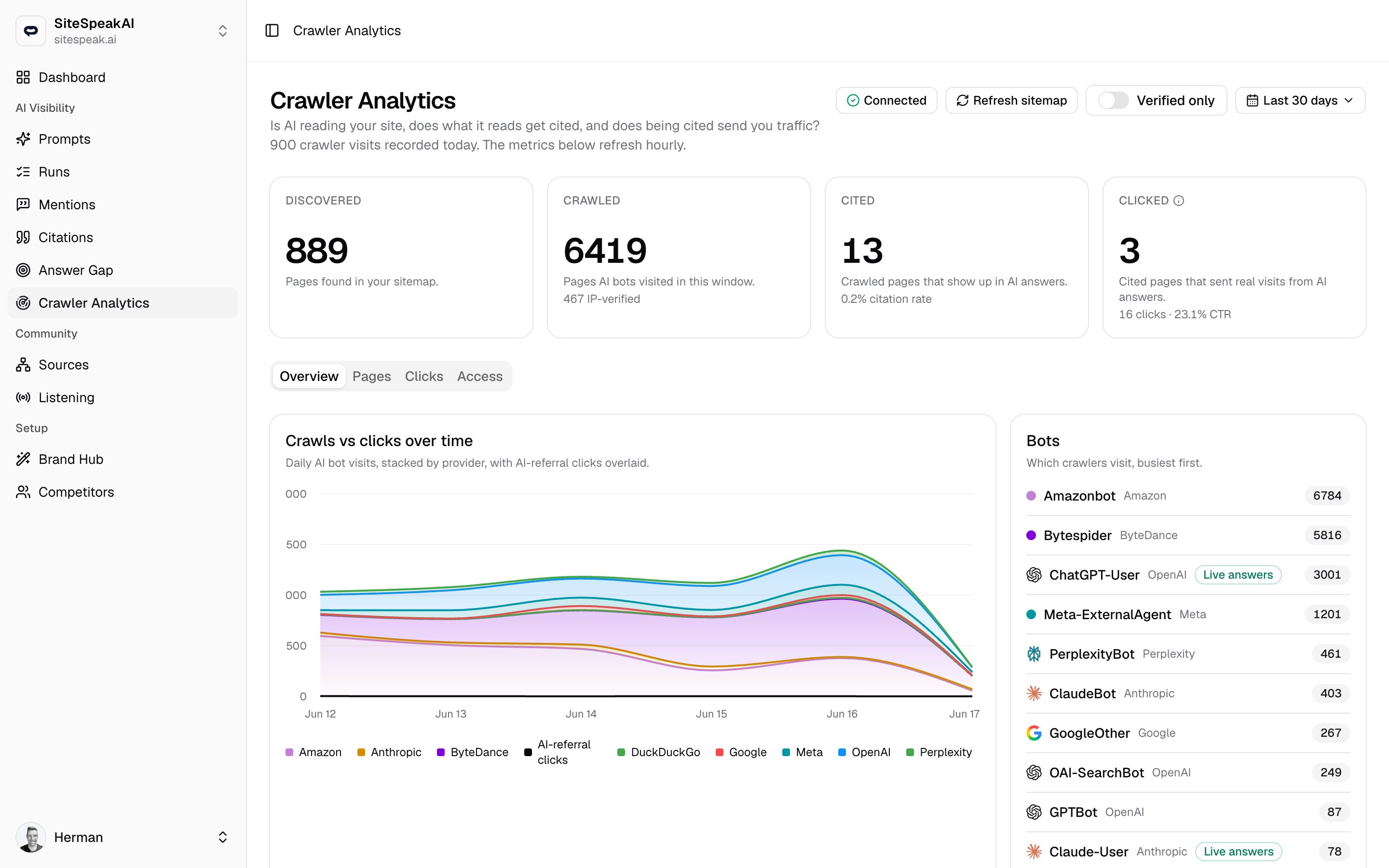
Crawler Analytics needs data from your own site to work. AI bots do not run JavaScript, so a normal analytics snippet never sees them. Instead you deploy a tiny worker at your domain's edge that reports every AI crawler visit, and every click an AI answer sends you, back to MentionScout.
This page walks through connecting your site once. After that, the worker keeps reporting on its own and the numbers refresh hourly.
 Tracking runs as a Cloudflare Worker, so your domain needs to be on Cloudflare with proxied DNS (the orange cloud). Select the website you want to track before you start. The **Connect your site** button only appears once a website is selected.
## How it works
The worker sits in front of your site and watches each request after the page is already served, so it never slows visitors down. It reports two kinds of event:
* **Crawls** - a request whose user agent matches a known AI bot. The worker records the path, the response status, the user agent, and the visitor IP so the bot can be IP-verified.
* **Clicks** - a normal visitor who arrived from a known AI assistant. The worker records the path, the response status, and the referring host only. There is no visitor IP, and the country comes from Cloudflare's free `CF-IPCountry` header.
Each event is sent to MentionScout's ingest endpoint at `/api/crawler-events`, authorized with your ingest token as a `Bearer` credential. Both the endpoint and the token are written into the generated worker script, so there is nothing to wire up by hand.
## Connect your site
Go to **Crawler Analytics** and click **Connect your site** in the top-right corner.
Click **Generate ingest token**. MentionScout issues one ingest token for this website and uses it to build your worker script, with the token baked in. Generating the token also reads your sitemap to seed the **Discovered** baseline and warms the bot IP-range list so your first visits can verify straight away.
The token is shown only once, inside the worker script. Copy the script before you close the dialog. If you lose it, you can regenerate, but that replaces the old token.
Click **Copy worker script**. This copies the full worker, with your ingest endpoint and token already filled in.
In the Cloudflare sidebar, open **Compute -> Workers & Pages**, then click **Create application**. On the "Create a Worker" screen, choose **Start with Hello World!** and create the worker.
Open **Edit code**, replace everything in the editor with the script you copied, then click **Deploy**.
Open your domain in Cloudflare, go to **Workers Routes**, and click **Add route**. Set the route to `yourdomain.com/*` and select this worker.
Use a **Route**, not a Custom Domain. Make sure the domain's DNS is proxied (the orange cloud), or the route never runs and no events reach MentionScout.
The **Connect your site** button changes to **Awaiting visits** once the token exists, then to **Connected** after the first events arrive. The page also shows a live count of visits and clicks recorded today, even before the hourly rollup runs.
The worker runs at Cloudflare's edge and adds well under a millisecond. It runs on all traffic to your domain, which counts toward Cloudflare's Workers usage. Their free plan covers 100,000 requests per day.
## Verified visits
A crawl is **Verified** when the request came from an IP address that belongs to the provider it claims to be. Because the worker sends the visitor IP on every crawl, MentionScout can check it against published bot IP ranges and confirm the bot is genuine rather than a spoofed user agent.
* The **Crawled** funnel card shows how many of the crawled pages were IP-verified.
* The **Pages** table has a **Verified** column, with a check mark on pages where every visit came from a verified provider IP.
* The **Verified only** toggle in the toolbar filters the whole dashboard down to verified visits, dropping bots that can never verify.
Generating your token warms the IP-range list, so visits that land right after you connect can verify immediately.
## Refresh the discovered baseline
The **Discovered** stage of the funnel is the set of pages MentionScout found in your sitemap. Click **Refresh sitemap** in the toolbar to re-read your sitemap and pick up new or removed pages. Do this after you publish a batch of new content so the crawl and citation rates compare against an up-to-date page count.
## Access tab
The **Access** tab audits your `robots.txt` and shows which AI crawlers it lets in. This is the gate before crawling: a bot that your `robots.txt` blocks can never read a page, so it can never cite it.
Each row lists a crawler, its provider, and a verdict:
| Verdict | Meaning |
| ----------- | ----------------------------------------------------------- |
| **Allowed** | Your `robots.txt` lets this crawler read your site. |
| **Partial** | The crawler is allowed on some paths and blocked on others. |
| **Blocked** | Your `robots.txt` disallows this crawler entirely. |
| **unknown** | No clear rule was found for this crawler. |
Click **Re-check** to fetch your `robots.txt` again and re-run the audit, for example after you change which bots you allow. If you want AI answers to cite you, make sure the crawlers you care about are not **Blocked**.
## Manage or rotate the token
Once you are connected, open the **Connected** button again to manage the token:
* **Regenerate token** issues a fresh token and worker script. The old token stops working, so paste the new script into your worker and redeploy it. Use this to rotate the token, or to move tracking to another domain.
* **Revoke** deletes the token. The worker stops reporting until you generate a new one and redeploy.
Connected before AI-referral clicks were supported? Regenerate and redeploy the latest worker to start capturing the **Clicked** stage. Your crawler data keeps flowing in the meantime.
## Running a high-traffic site
The worker runs on every request to your domain. On busy sites you can stop it running on non-content paths (assets, embeds, APIs) using Cloudflare "no-script routes": add a more specific route with **No worker** assigned, and keep the broad `yourdomain.com/*` route on this worker. The more specific route wins, so those paths skip the worker entirely.
```text theme={null}
yourdomain.com/embed/* -> No worker (exclude)
yourdomain.com/* -> this worker
```
Common excludes are paths like `/cdn-cgi/*`, `/wp-json/*`, and `/wp-admin/*`. The connection dialog also lists **Suggested for your site**: the non-content paths it actually sees AI bots hitting, so you can scope the worker with confidence.
## Next step
Once events are flowing, head back to the dashboard to read the funnel, the per-page breakdown, and your AI-referral clicks.
Read the crawl, cite, and click funnel, see which bots visit, and find pages that are crawled but never cited.
Tracking runs as a Cloudflare Worker, so your domain needs to be on Cloudflare with proxied DNS (the orange cloud). Select the website you want to track before you start. The **Connect your site** button only appears once a website is selected.
## How it works
The worker sits in front of your site and watches each request after the page is already served, so it never slows visitors down. It reports two kinds of event:
* **Crawls** - a request whose user agent matches a known AI bot. The worker records the path, the response status, the user agent, and the visitor IP so the bot can be IP-verified.
* **Clicks** - a normal visitor who arrived from a known AI assistant. The worker records the path, the response status, and the referring host only. There is no visitor IP, and the country comes from Cloudflare's free `CF-IPCountry` header.
Each event is sent to MentionScout's ingest endpoint at `/api/crawler-events`, authorized with your ingest token as a `Bearer` credential. Both the endpoint and the token are written into the generated worker script, so there is nothing to wire up by hand.
## Connect your site
Go to **Crawler Analytics** and click **Connect your site** in the top-right corner.
Click **Generate ingest token**. MentionScout issues one ingest token for this website and uses it to build your worker script, with the token baked in. Generating the token also reads your sitemap to seed the **Discovered** baseline and warms the bot IP-range list so your first visits can verify straight away.
The token is shown only once, inside the worker script. Copy the script before you close the dialog. If you lose it, you can regenerate, but that replaces the old token.
Click **Copy worker script**. This copies the full worker, with your ingest endpoint and token already filled in.
In the Cloudflare sidebar, open **Compute -> Workers & Pages**, then click **Create application**. On the "Create a Worker" screen, choose **Start with Hello World!** and create the worker.
Open **Edit code**, replace everything in the editor with the script you copied, then click **Deploy**.
Open your domain in Cloudflare, go to **Workers Routes**, and click **Add route**. Set the route to `yourdomain.com/*` and select this worker.
Use a **Route**, not a Custom Domain. Make sure the domain's DNS is proxied (the orange cloud), or the route never runs and no events reach MentionScout.
The **Connect your site** button changes to **Awaiting visits** once the token exists, then to **Connected** after the first events arrive. The page also shows a live count of visits and clicks recorded today, even before the hourly rollup runs.
The worker runs at Cloudflare's edge and adds well under a millisecond. It runs on all traffic to your domain, which counts toward Cloudflare's Workers usage. Their free plan covers 100,000 requests per day.
## Verified visits
A crawl is **Verified** when the request came from an IP address that belongs to the provider it claims to be. Because the worker sends the visitor IP on every crawl, MentionScout can check it against published bot IP ranges and confirm the bot is genuine rather than a spoofed user agent.
* The **Crawled** funnel card shows how many of the crawled pages were IP-verified.
* The **Pages** table has a **Verified** column, with a check mark on pages where every visit came from a verified provider IP.
* The **Verified only** toggle in the toolbar filters the whole dashboard down to verified visits, dropping bots that can never verify.
Generating your token warms the IP-range list, so visits that land right after you connect can verify immediately.
## Refresh the discovered baseline
The **Discovered** stage of the funnel is the set of pages MentionScout found in your sitemap. Click **Refresh sitemap** in the toolbar to re-read your sitemap and pick up new or removed pages. Do this after you publish a batch of new content so the crawl and citation rates compare against an up-to-date page count.
## Access tab
The **Access** tab audits your `robots.txt` and shows which AI crawlers it lets in. This is the gate before crawling: a bot that your `robots.txt` blocks can never read a page, so it can never cite it.
Each row lists a crawler, its provider, and a verdict:
| Verdict | Meaning |
| ----------- | ----------------------------------------------------------- |
| **Allowed** | Your `robots.txt` lets this crawler read your site. |
| **Partial** | The crawler is allowed on some paths and blocked on others. |
| **Blocked** | Your `robots.txt` disallows this crawler entirely. |
| **unknown** | No clear rule was found for this crawler. |
Click **Re-check** to fetch your `robots.txt` again and re-run the audit, for example after you change which bots you allow. If you want AI answers to cite you, make sure the crawlers you care about are not **Blocked**.
## Manage or rotate the token
Once you are connected, open the **Connected** button again to manage the token:
* **Regenerate token** issues a fresh token and worker script. The old token stops working, so paste the new script into your worker and redeploy it. Use this to rotate the token, or to move tracking to another domain.
* **Revoke** deletes the token. The worker stops reporting until you generate a new one and redeploy.
Connected before AI-referral clicks were supported? Regenerate and redeploy the latest worker to start capturing the **Clicked** stage. Your crawler data keeps flowing in the meantime.
## Running a high-traffic site
The worker runs on every request to your domain. On busy sites you can stop it running on non-content paths (assets, embeds, APIs) using Cloudflare "no-script routes": add a more specific route with **No worker** assigned, and keep the broad `yourdomain.com/*` route on this worker. The more specific route wins, so those paths skip the worker entirely.
```text theme={null}
yourdomain.com/embed/* -> No worker (exclude)
yourdomain.com/* -> this worker
```
Common excludes are paths like `/cdn-cgi/*`, `/wp-json/*`, and `/wp-admin/*`. The connection dialog also lists **Suggested for your site**: the non-content paths it actually sees AI bots hitting, so you can scope the worker with confidence.
## Next step
Once events are flowing, head back to the dashboard to read the funnel, the per-page breakdown, and your AI-referral clicks.
Read the crawl, cite, and click funnel, see which bots visit, and find pages that are crawled but never cited.