> ## Documentation Index
> Fetch the complete documentation index at: https://mentionscout.com/docs/llms.txt
> Use this file to discover all available pages before exploring further.
# Discover prompts
> Find real prompts your buyers ask AI, then add them to tracking.
The **Discover** tab surfaces real prompts people ask AI in your space, so you can grow your tracked list without guessing what to write. Generate suggestions from a source, review them, then add the ones worth tracking or dismiss the rest.
 ## Open the Discover tab
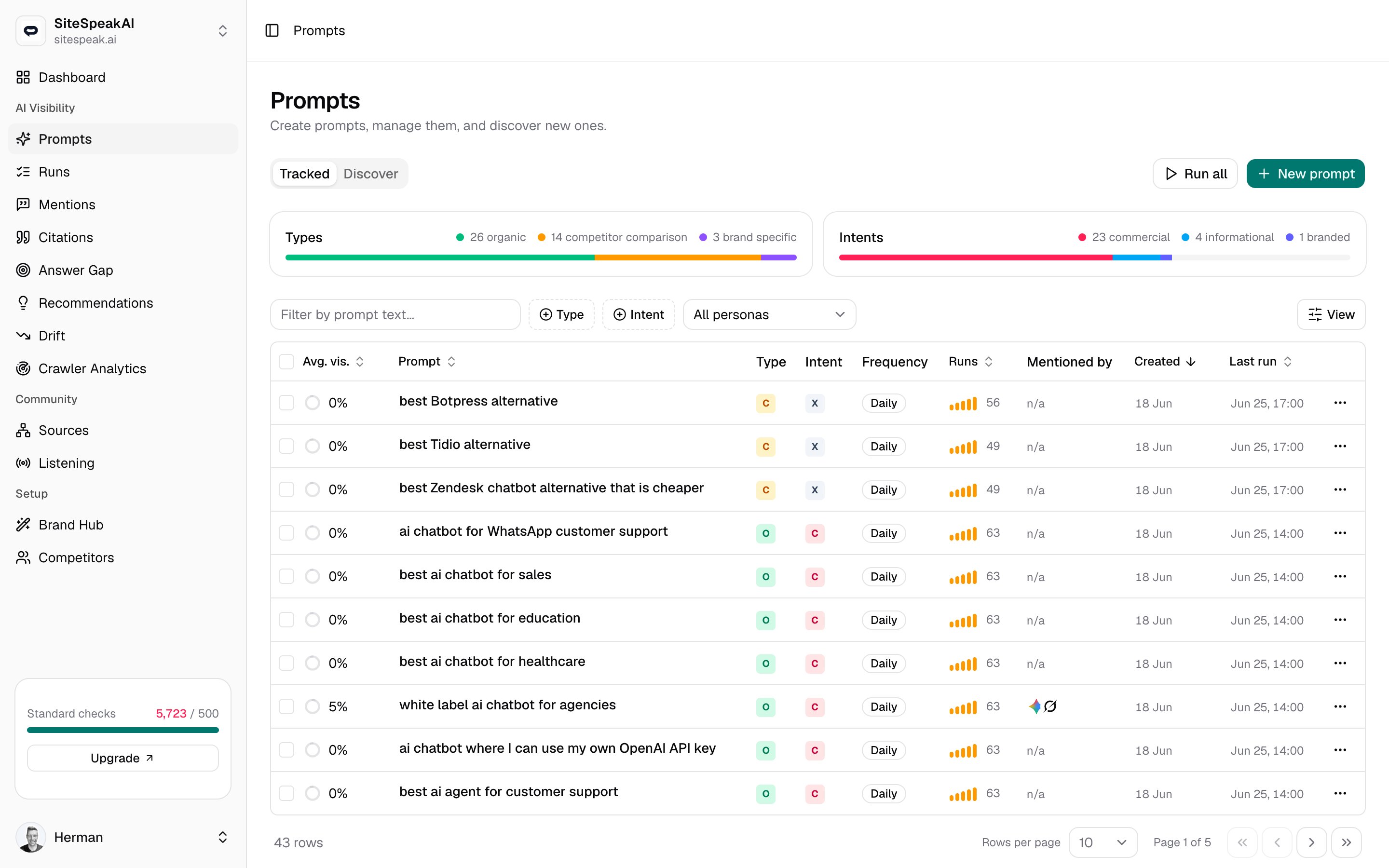
Go to **Prompts** in the AI Visibility group, then click the **Discover** tab. The neighbouring **Tracked** tab is your live prompt list, the one that runs on a schedule and feeds your visibility stats.
Discover works against the website you have selected. If no website is active, you'll be asked to switch to a website or add one before you can generate suggestions.
## Choose a source
Pick the source that fits what you already have, a topic, a search query, or a page you want AI to surface.
Enter a topic or query you want to rank for, and MentionScout expands it into buyer-style prompts. Good when you know the space but not the exact wording people use.
Example input: `ai chatbot for ecommerce`
Enter a Google query, and MentionScout turns its People also asked and related questions into suggested prompts. Use the country selector to match the market you care about (it defaults to the United States).
Example input: `best crm software`
This source can be temporarily unavailable. When it is, you'll see a short message and can switch to Manual Search or From website page instead.
Enter a full page URL. MentionScout reads its title, description, and content, then suggests prompts that page could surface for. Useful for finding prompts tied to a specific product or landing page.
Example input: `https://example.com/product`
Enter a complete URL including `https://`. A partial address is rejected with a reminder to enter a full URL.
## Generate suggestions
Click the source that matches your input. Switching tabs clears the input field.
Type your topic, search query, or page URL. For People also asked, also choose a country.
The button shows **Finding…** while it works, then new suggestions appear below with a running count of how many were found.
MentionScout skips anything you already track or have already been suggested, so each search returns only genuinely new prompts. If a search turns up nothing new, you'll see a message to try a different query or source.
## Review, add, or dismiss
Each suggestion is a card showing the prompt text plus two badges: the **source** it came from (Seed, People also asked, or Website page) and its **type** (for example organic).
Click **Add** to start tracking the prompt. It joins your Tracked list and runs on every AI provider you have connected.
Click the **X** to dismiss a suggestion you don't want.
Dismissed suggestions don't come back, and prompts you already track are filtered out too. Running the same search later only surfaces prompts you haven't seen yet, so you can keep mining a source over time.
Added prompts behave like any other tracked prompt. Open the **Tracked** tab to set their run frequency, adjust providers, or exclude branded ones from your visibility score.
## Related
Manage your tracked prompts: types, intents, frequency, providers, and runs.
See what each AI provider answered when your prompts ran.
## Open the Discover tab
Go to **Prompts** in the AI Visibility group, then click the **Discover** tab. The neighbouring **Tracked** tab is your live prompt list, the one that runs on a schedule and feeds your visibility stats.
Discover works against the website you have selected. If no website is active, you'll be asked to switch to a website or add one before you can generate suggestions.
## Choose a source
Pick the source that fits what you already have, a topic, a search query, or a page you want AI to surface.
Enter a topic or query you want to rank for, and MentionScout expands it into buyer-style prompts. Good when you know the space but not the exact wording people use.
Example input: `ai chatbot for ecommerce`
Enter a Google query, and MentionScout turns its People also asked and related questions into suggested prompts. Use the country selector to match the market you care about (it defaults to the United States).
Example input: `best crm software`
This source can be temporarily unavailable. When it is, you'll see a short message and can switch to Manual Search or From website page instead.
Enter a full page URL. MentionScout reads its title, description, and content, then suggests prompts that page could surface for. Useful for finding prompts tied to a specific product or landing page.
Example input: `https://example.com/product`
Enter a complete URL including `https://`. A partial address is rejected with a reminder to enter a full URL.
## Generate suggestions
Click the source that matches your input. Switching tabs clears the input field.
Type your topic, search query, or page URL. For People also asked, also choose a country.
The button shows **Finding…** while it works, then new suggestions appear below with a running count of how many were found.
MentionScout skips anything you already track or have already been suggested, so each search returns only genuinely new prompts. If a search turns up nothing new, you'll see a message to try a different query or source.
## Review, add, or dismiss
Each suggestion is a card showing the prompt text plus two badges: the **source** it came from (Seed, People also asked, or Website page) and its **type** (for example organic).
Click **Add** to start tracking the prompt. It joins your Tracked list and runs on every AI provider you have connected.
Click the **X** to dismiss a suggestion you don't want.
Dismissed suggestions don't come back, and prompts you already track are filtered out too. Running the same search later only surfaces prompts you haven't seen yet, so you can keep mining a source over time.
Added prompts behave like any other tracked prompt. Open the **Tracked** tab to set their run frequency, adjust providers, or exclude branded ones from your visibility score.
## Related
Manage your tracked prompts: types, intents, frequency, providers, and runs.
See what each AI provider answered when your prompts ran.