> ## Documentation Index
> Fetch the complete documentation index at: https://mentionscout.com/docs/llms.txt
> Use this file to discover all available pages before exploring further.
# Query fan-out
> See the follow-up sub-queries an answer engine expands a prompt into.
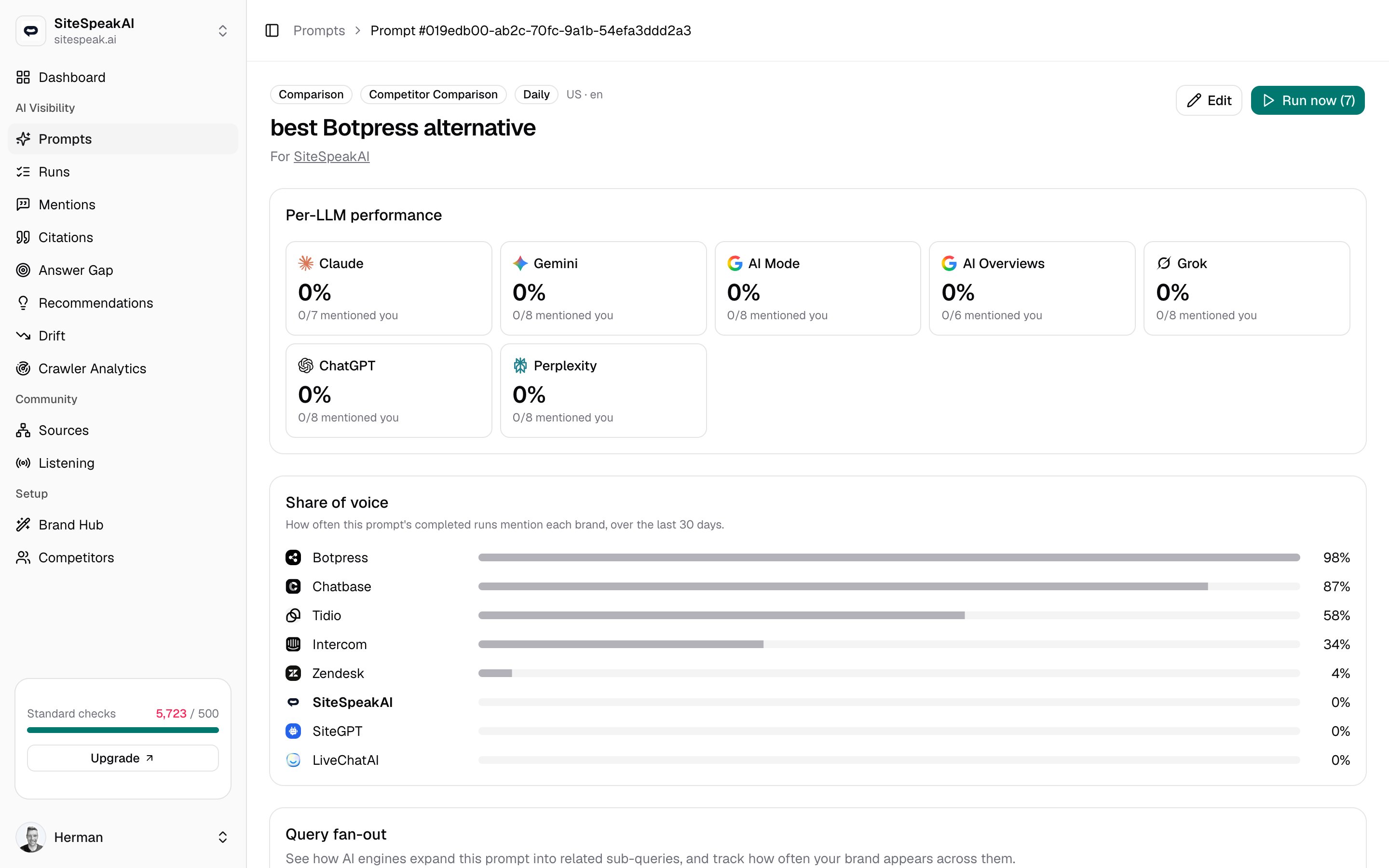
When someone asks an AI answer engine a question, it rarely searches for just those exact words. It fans the question out into several related follow-up searches, pulls sources across all of them, and only then writes its answer. Query fan-out tracks that wider set of sub-queries for each prompt, so your visibility reflects how engines really answer, not just the one sentence you typed.
 ## Why fan-out matters
A single tracked prompt is one entry point. The engine behind it usually explores a handful of related questions before answering, so your brand can be present for the prompt itself yet missing from the follow-ups that actually shaped the reply.
Fan-out closes that blind spot. For each prompt, MentionScout expands it into related sub-queries, runs them against your selected engines, and measures how often you show up across the whole set. The result is a truer picture of your coverage: not just "did you appear for this prompt" but "did you appear across the questions this prompt really triggers".
## Turn on fan-out
Fan-out is a card on each prompt's detail page. Open a prompt from the **Prompts** list, then find the **Query fan-out** card.
Toggle **Enable fan-out** on. The coverage panel and the sub-queries table appear underneath.
Set the **Sub-queries** count. You can track between `3` and `8` related sub-queries per prompt.
Sub-queries generate automatically on the prompt's next run cycle. To create a fresh set right away, click **Regenerate**.
Each enabled sub-query runs alongside the prompt against every engine the prompt targets, so turning on fan-out adds runs. A prompt with five active sub-queries and three engines fires the prompt plus five follow-up searches per engine each cycle.
## The sub-queries table
The table lists every sub-query MentionScout is tracking for the prompt.
The related question the engine is likely to explore off the back of your prompt.
What kind of follow-up it is, shown as a badge so you can see the spread of intent across the set.
A switch to include or exclude that sub-query. Turn one off to stop running and measuring it without deleting it; turn it back on at any time.
If the table is empty, you will see "No sub-queries yet. They generate on the next run cycle." Click **Regenerate** to build the set now instead of waiting.
Clicking **Regenerate** replaces the current generated set with a new one at your chosen count. Use it after you reword the prompt or change its focus, so the sub-queries stay relevant.
## Reading coverage
With fan-out on, three figures sit at the top of the card, measured over the date range selected for the prompt.
The share of sub-query runs where your brand appears. This is the headline number: how present you are across the follow-up questions.
The share of sub-query runs that include at least one citation, so you can see how often these runs lean on linked sources at all.
How many sub-query runs completed in the window, so you know how much data the percentages rest on.
Below the figures, two breakdowns show where coverage is strong or thin:
* **Coverage by category** shows your appearance rate for each kind of follow-up, with the run count in brackets. A low category is a type of question you are losing.
* **Coverage by LLM** shows your appearance rate per engine across the sub-queries, so you can tell whether a gap is one engine or all of them.
Fan-out coverage counts sub-query runs only. The prompt's own runs and any prompts excluded from visibility are left out, so this number stays focused on the follow-up questions.
## Community threads driven by fan-out
When a sub-query run cites a Reddit, Hacker News, or Bluesky thread as a source, that thread shows up under **Community threads driven by fan-out**, grouped by the sub-query that surfaced it. It is a direct line from a follow-up question to the public conversation an engine drew on to answer it, and a shortlist of threads worth engaging with.
See the wider web of pages and threads that AI answers cite as sources.
## How fan-out runs show up
Fan-out runs sit alongside the prompt's own runs in the **Recent runs** table, each marked with a **Fan-out** badge and the exact sub-query text that was sent. Open any of them to read the full answer like any other run.
To keep your headline numbers clean, fan-out runs are reported separately: they do not inflate the run count or visibility shown for the prompt on the **Prompts** list. Those figures stay tied to the prompt itself, while fan-out coverage lives in its own card.
## Related
Create and manage the prompts that fan-out expands.
Open the full answer behind any run, including every fan-out sub-query.
## Why fan-out matters
A single tracked prompt is one entry point. The engine behind it usually explores a handful of related questions before answering, so your brand can be present for the prompt itself yet missing from the follow-ups that actually shaped the reply.
Fan-out closes that blind spot. For each prompt, MentionScout expands it into related sub-queries, runs them against your selected engines, and measures how often you show up across the whole set. The result is a truer picture of your coverage: not just "did you appear for this prompt" but "did you appear across the questions this prompt really triggers".
## Turn on fan-out
Fan-out is a card on each prompt's detail page. Open a prompt from the **Prompts** list, then find the **Query fan-out** card.
Toggle **Enable fan-out** on. The coverage panel and the sub-queries table appear underneath.
Set the **Sub-queries** count. You can track between `3` and `8` related sub-queries per prompt.
Sub-queries generate automatically on the prompt's next run cycle. To create a fresh set right away, click **Regenerate**.
Each enabled sub-query runs alongside the prompt against every engine the prompt targets, so turning on fan-out adds runs. A prompt with five active sub-queries and three engines fires the prompt plus five follow-up searches per engine each cycle.
## The sub-queries table
The table lists every sub-query MentionScout is tracking for the prompt.
The related question the engine is likely to explore off the back of your prompt.
What kind of follow-up it is, shown as a badge so you can see the spread of intent across the set.
A switch to include or exclude that sub-query. Turn one off to stop running and measuring it without deleting it; turn it back on at any time.
If the table is empty, you will see "No sub-queries yet. They generate on the next run cycle." Click **Regenerate** to build the set now instead of waiting.
Clicking **Regenerate** replaces the current generated set with a new one at your chosen count. Use it after you reword the prompt or change its focus, so the sub-queries stay relevant.
## Reading coverage
With fan-out on, three figures sit at the top of the card, measured over the date range selected for the prompt.
The share of sub-query runs where your brand appears. This is the headline number: how present you are across the follow-up questions.
The share of sub-query runs that include at least one citation, so you can see how often these runs lean on linked sources at all.
How many sub-query runs completed in the window, so you know how much data the percentages rest on.
Below the figures, two breakdowns show where coverage is strong or thin:
* **Coverage by category** shows your appearance rate for each kind of follow-up, with the run count in brackets. A low category is a type of question you are losing.
* **Coverage by LLM** shows your appearance rate per engine across the sub-queries, so you can tell whether a gap is one engine or all of them.
Fan-out coverage counts sub-query runs only. The prompt's own runs and any prompts excluded from visibility are left out, so this number stays focused on the follow-up questions.
## Community threads driven by fan-out
When a sub-query run cites a Reddit, Hacker News, or Bluesky thread as a source, that thread shows up under **Community threads driven by fan-out**, grouped by the sub-query that surfaced it. It is a direct line from a follow-up question to the public conversation an engine drew on to answer it, and a shortlist of threads worth engaging with.
See the wider web of pages and threads that AI answers cite as sources.
## How fan-out runs show up
Fan-out runs sit alongside the prompt's own runs in the **Recent runs** table, each marked with a **Fan-out** badge and the exact sub-query text that was sent. Open any of them to read the full answer like any other run.
To keep your headline numbers clean, fan-out runs are reported separately: they do not inflate the run count or visibility shown for the prompt on the **Prompts** list. Those figures stay tied to the prompt itself, while fan-out coverage lives in its own card.
## Related
Create and manage the prompts that fan-out expands.
Open the full answer behind any run, including every fan-out sub-query.