> ## Documentation Index
> Fetch the complete documentation index at: https://mentionscout.com/docs/llms.txt
> Use this file to discover all available pages before exploring further.
# Runs
> Every prompt-to-LLM execution, and how to read a single run.
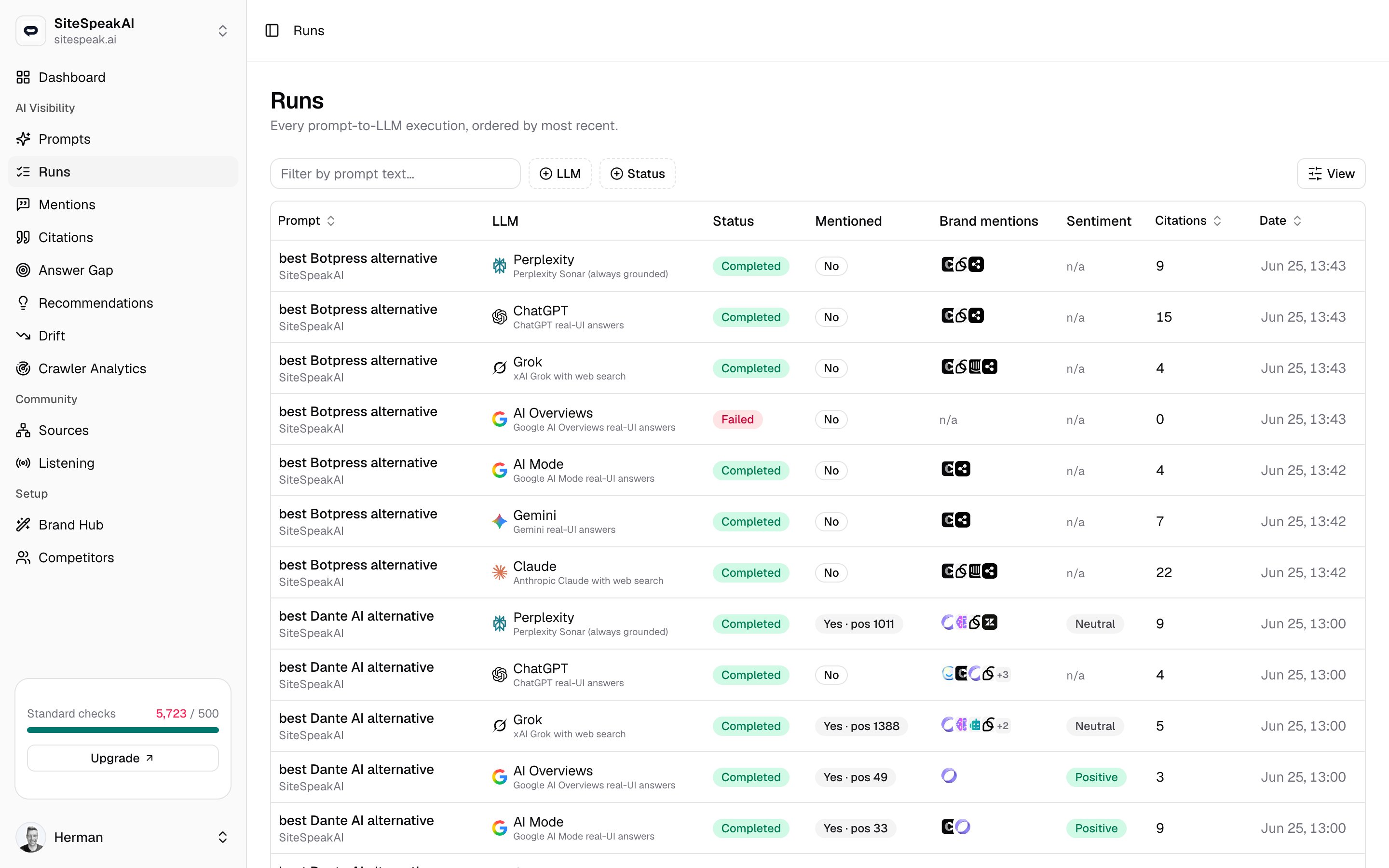
A run is one execution of a prompt against one AI engine. Every scheduled check and every manual run lands here, so the Runs page is your raw, time-ordered log of what each engine actually answered.
 ## What a run is
Each row is a single prompt sent to a single engine (ChatGPT, Claude, Gemini, Perplexity, Grok, AI Overviews, or AI Mode). MentionScout captures the answer, then parses it for your brand, competitor mentions, sentiment, and citations. Those parsed results are what feed the Mentions and Citations pages.
Runs are created two ways:
* **On schedule.** Each prompt runs on its own frequency (for example, daily). You set this per prompt.
* **On demand.** Trigger **Run all** from the Prompts page to fire every enabled prompt, or **Run now** from a single prompt's page.
Set which prompts run, how often, and against which engines.
## Reading the table
The Runs table is sorted with the newest execution at the top. A live indicator at the top right shows how many runs are still in flight, and the table refreshes on its own as those runs finish.
| Column | What it shows |
| ------------------ | --------------------------------------------------------------------------------------------------------- |
| **Prompt** | The prompt text, with the brand it belongs to underneath. Click it to open the run detail. |
| **LLM** | The engine the prompt ran against. |
| **Status** | `Pending`, `Running`, `Completed`, or `Failed`. |
| **Mentioned** | Whether your brand appeared in the answer. When it did, the badge shows the position it was mentioned at. |
| **Brand mentions** | Competitor brands detected in the same answer. |
| **Sentiment** | The tone of how your brand was described. |
| **Citations** | How many sources the engine cited in that answer. |
| **Date** | When the run was created. |
### Filtering
Use the toolbar to narrow the list:
* Type in **Filter by prompt text** to find runs for a specific prompt.
* Use the **LLM** filter to show only certain engines.
* Use the **Status** filter to isolate, say, only `Failed` or only `Running` runs.
* Click **Reset** to clear all filters.
Filtering by **Status** is the fastest way to spot trouble. A cluster of `Failed` runs for one engine usually means that engine had a temporary hiccup; the next scheduled run normally recovers on its own.
## A single run
Click any row to open the run detail. This is the full record of one answer: the headline metrics, what the engine searched, and the actual response with everything MentionScout pulled out of it.
## What a run is
Each row is a single prompt sent to a single engine (ChatGPT, Claude, Gemini, Perplexity, Grok, AI Overviews, or AI Mode). MentionScout captures the answer, then parses it for your brand, competitor mentions, sentiment, and citations. Those parsed results are what feed the Mentions and Citations pages.
Runs are created two ways:
* **On schedule.** Each prompt runs on its own frequency (for example, daily). You set this per prompt.
* **On demand.** Trigger **Run all** from the Prompts page to fire every enabled prompt, or **Run now** from a single prompt's page.
Set which prompts run, how often, and against which engines.
## Reading the table
The Runs table is sorted with the newest execution at the top. A live indicator at the top right shows how many runs are still in flight, and the table refreshes on its own as those runs finish.
| Column | What it shows |
| ------------------ | --------------------------------------------------------------------------------------------------------- |
| **Prompt** | The prompt text, with the brand it belongs to underneath. Click it to open the run detail. |
| **LLM** | The engine the prompt ran against. |
| **Status** | `Pending`, `Running`, `Completed`, or `Failed`. |
| **Mentioned** | Whether your brand appeared in the answer. When it did, the badge shows the position it was mentioned at. |
| **Brand mentions** | Competitor brands detected in the same answer. |
| **Sentiment** | The tone of how your brand was described. |
| **Citations** | How many sources the engine cited in that answer. |
| **Date** | When the run was created. |
### Filtering
Use the toolbar to narrow the list:
* Type in **Filter by prompt text** to find runs for a specific prompt.
* Use the **LLM** filter to show only certain engines.
* Use the **Status** filter to isolate, say, only `Failed` or only `Running` runs.
* Click **Reset** to clear all filters.
Filtering by **Status** is the fastest way to spot trouble. A cluster of `Failed` runs for one engine usually means that engine had a temporary hiccup; the next scheduled run normally recovers on its own.
## A single run
Click any row to open the run detail. This is the full record of one answer: the headline metrics, what the engine searched, and the actual response with everything MentionScout pulled out of it.
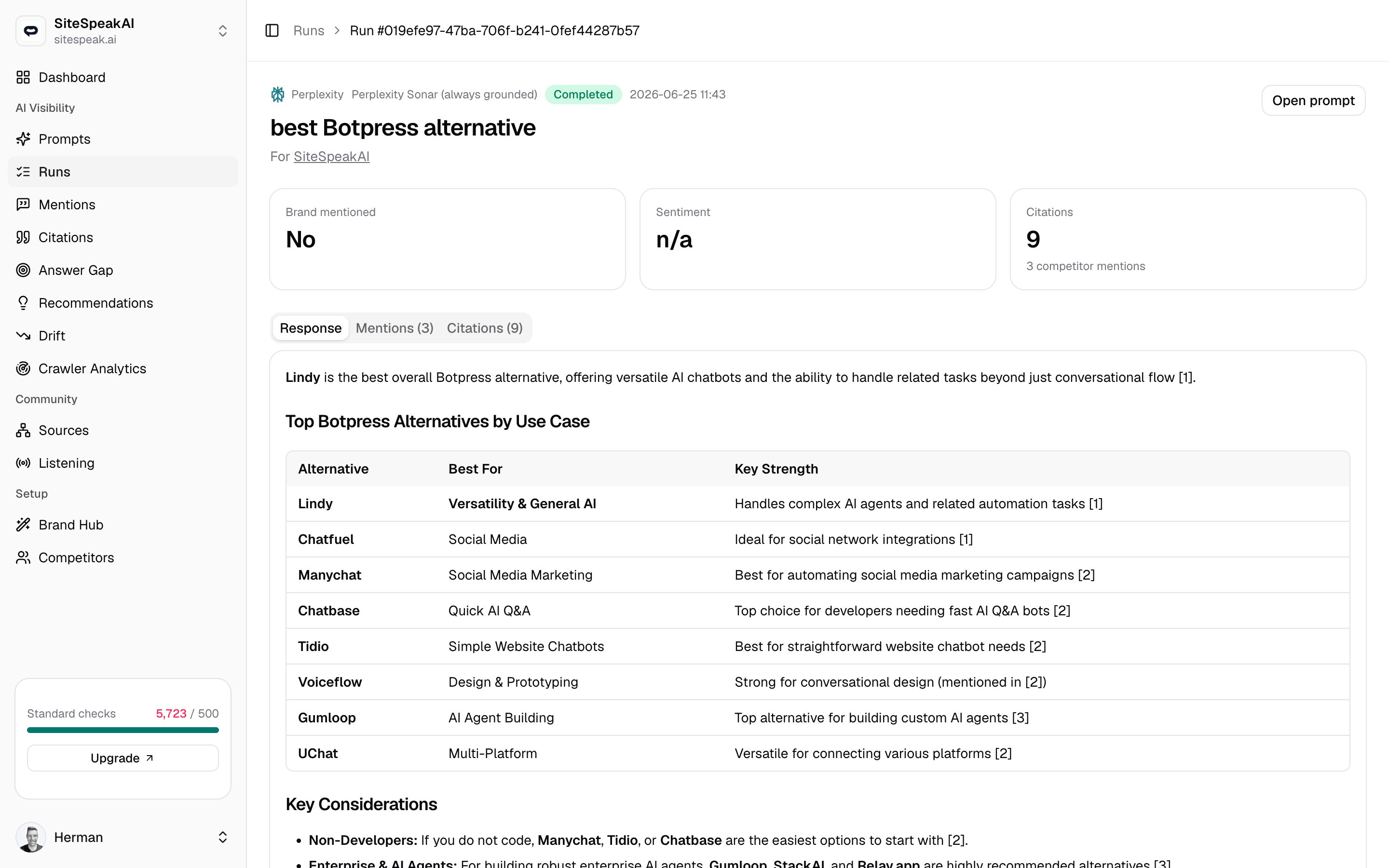 At the top you get the engine, the run status, the prompt that was asked, and the brand it was for. Click **Open prompt** to jump to that prompt's page.
### Headline stats
Three cards summarise the result:
* **Brand mentioned** - `Yes` or `No`, with the position your brand appeared at when it was mentioned.
* **Sentiment** - the overall tone toward your brand in this answer.
* **Citations** - how many sources were cited, plus a count of competitor mentions in the same answer.
If the run did not finish, a **This run didn't complete** card appears below the stats and explains what went wrong in plain language.
### What the AI searched
When the engine ran its own web searches to build the answer, those underlying queries appear in a **What the AI searched** panel. This is the engine fanning a single prompt out into several searches behind the scenes, and it shows you the exact phrasing it chose.
Not every run has this panel. It only appears when the engine actually performed searches to answer, and the set of searches can differ from one run to the next.
### Response, mentions, and citations
The rest of the page is three tabs over the same answer:
The full answer the engine returned, rendered as formatted text. This is the exact content your brand was or was not part of. If nothing was captured, the tab says so.
Each brand detected in the answer, tagged as **Your brand** or a competitor, with the matched text, the mention type, its sentiment, and the surrounding context.
Every source the answer cited. Sources on your own domain are flagged **Your domain**, competitor sources show the competitor's name, and each entry links out to the original page.
## Where runs feed into
A single run is one data point. The aggregate pages roll many runs together so you can see trends rather than individual answers.
Every time your brand and competitors were named across all runs.
Which sources the engines cite when they answer, aggregated over time.
At the top you get the engine, the run status, the prompt that was asked, and the brand it was for. Click **Open prompt** to jump to that prompt's page.
### Headline stats
Three cards summarise the result:
* **Brand mentioned** - `Yes` or `No`, with the position your brand appeared at when it was mentioned.
* **Sentiment** - the overall tone toward your brand in this answer.
* **Citations** - how many sources were cited, plus a count of competitor mentions in the same answer.
If the run did not finish, a **This run didn't complete** card appears below the stats and explains what went wrong in plain language.
### What the AI searched
When the engine ran its own web searches to build the answer, those underlying queries appear in a **What the AI searched** panel. This is the engine fanning a single prompt out into several searches behind the scenes, and it shows you the exact phrasing it chose.
Not every run has this panel. It only appears when the engine actually performed searches to answer, and the set of searches can differ from one run to the next.
### Response, mentions, and citations
The rest of the page is three tabs over the same answer:
The full answer the engine returned, rendered as formatted text. This is the exact content your brand was or was not part of. If nothing was captured, the tab says so.
Each brand detected in the answer, tagged as **Your brand** or a competitor, with the matched text, the mention type, its sentiment, and the surrounding context.
Every source the answer cited. Sources on your own domain are flagged **Your domain**, competitor sources show the competitor's name, and each entry links out to the original page.
## Where runs feed into
A single run is one data point. The aggregate pages roll many runs together so you can see trends rather than individual answers.
Every time your brand and competitors were named across all runs.
Which sources the engines cite when they answer, aggregated over time.