> ## Documentation Index
> Fetch the complete documentation index at: https://mentionscout.com/docs/llms.txt
> Use this file to discover all available pages before exploring further.
# Connect an MCP client
> Connect Claude Code or another MCP client to your MentionScout data.
MentionScout ships a Model Context Protocol (MCP) server, so you can pull your AI visibility data straight into Claude Code or any other MCP client. Ask questions like "what changed since yesterday?" and let the assistant read your mentions, runs, citations, and answer gaps, or even create and edit the prompts you track.
 ## How it works
You connect a client in two parts:
* The **MCP endpoint** is your MentionScout URL with `/mcp` on the end (for example `https://your-mentionscout-domain/mcp`). The transport is HTTP.
* A **token** authenticates the client as you. You pass it as a bearer token in the `Authorization` header.
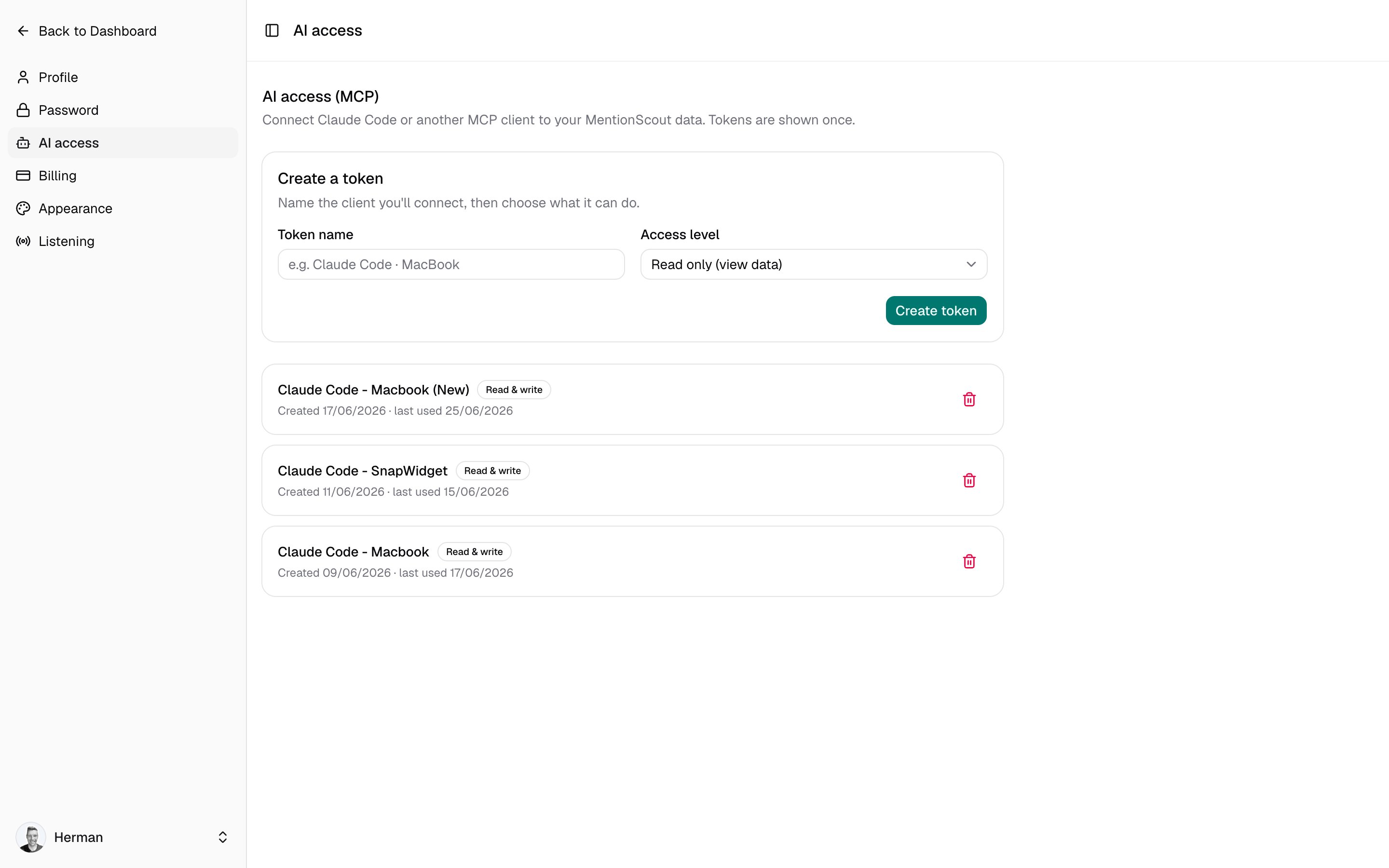
All access is scoped to your own workspaces, and reads default to your currently selected website. Find the page under **Settings > AI access**.
## Create a token
Go to **Settings > AI access**.
Under **Create a token**, enter a **Token name** that identifies where it will live, for example `Claude Code · MacBook`. The name is just a label, so you can recognise and revoke the right token later.
Pick **Read only** or **Read & write** (see below), then click **Create token**.
A card appears with a ready-to-paste connect command and a **Copy command** button. Copy it immediately.
Tokens are shown **once**. After you leave the page the plaintext token is gone and cannot be recovered. If you lose it, revoke the token and create a new one.
## Access levels
`Read only (view data)` lets the client read your data: prompts, runs, mentions, citations, answer gaps, community sources and social mentions, crawler analytics, and your brand profile. It cannot change anything. Use this for monitoring, reporting, and analysis.
`Read & write (also create/edit prompts)` includes everything read only can do, and additionally lets the client create and edit the prompts you track. Use this when you want the assistant to act on its suggestions, not just report.
Write access only covers prompt creation and edits. It does not delete data or change billing or account settings.
## Connect a client
### Claude Code
The fastest path is the command shown on the **AI access** page after you create a token. It looks like this:
```bash theme={null}
claude mcp add --transport http mentionscout https://your-mentionscout-domain/mcp --header "Authorization: Bearer YOUR_TOKEN"
```
Paste it into your terminal. Claude Code registers a server named `mentionscout`, and the MentionScout tools become available in your next session.
Copy the exact command from the page rather than typing it. It already contains your endpoint URL and the freshly created token.
### Other MCP clients
Any client that supports the streamable HTTP transport can connect with the same endpoint and header. Add an entry like this to your client's MCP server configuration:
```json theme={null}
{
"mcpServers": {
"mentionscout": {
"type": "http",
"url": "https://your-mentionscout-domain/mcp",
"headers": {
"Authorization": "Bearer YOUR_TOKEN"
}
}
}
}
```
Once connected, the server identifies itself as **MentionScout** and exposes a set of tools and guided prompts. The client suggests calling `list-websites` first to discover your website IDs; every tool then accepts an optional `website_id` and defaults to your selected website when you omit it.
## Manage tokens
The **AI access** page lists every token you have created. Each row shows the token name, a badge for its access level (**Read only** or **Read & write**), when it was created, and when it was last used.
To remove access, click the trash icon next to a token and confirm. Revocation is immediate: any client using that token loses access right away. Create a new token to reconnect.
Connecting more clients does not affect your data. Each token is independent, so you can keep one per machine or tool and revoke them individually.
## Next steps
See every tool the server exposes, what each returns, and how to use them for daily monitoring.
Manage your profile and the rest of your account settings.
## How it works
You connect a client in two parts:
* The **MCP endpoint** is your MentionScout URL with `/mcp` on the end (for example `https://your-mentionscout-domain/mcp`). The transport is HTTP.
* A **token** authenticates the client as you. You pass it as a bearer token in the `Authorization` header.
All access is scoped to your own workspaces, and reads default to your currently selected website. Find the page under **Settings > AI access**.
## Create a token
Go to **Settings > AI access**.
Under **Create a token**, enter a **Token name** that identifies where it will live, for example `Claude Code · MacBook`. The name is just a label, so you can recognise and revoke the right token later.
Pick **Read only** or **Read & write** (see below), then click **Create token**.
A card appears with a ready-to-paste connect command and a **Copy command** button. Copy it immediately.
Tokens are shown **once**. After you leave the page the plaintext token is gone and cannot be recovered. If you lose it, revoke the token and create a new one.
## Access levels
`Read only (view data)` lets the client read your data: prompts, runs, mentions, citations, answer gaps, community sources and social mentions, crawler analytics, and your brand profile. It cannot change anything. Use this for monitoring, reporting, and analysis.
`Read & write (also create/edit prompts)` includes everything read only can do, and additionally lets the client create and edit the prompts you track. Use this when you want the assistant to act on its suggestions, not just report.
Write access only covers prompt creation and edits. It does not delete data or change billing or account settings.
## Connect a client
### Claude Code
The fastest path is the command shown on the **AI access** page after you create a token. It looks like this:
```bash theme={null}
claude mcp add --transport http mentionscout https://your-mentionscout-domain/mcp --header "Authorization: Bearer YOUR_TOKEN"
```
Paste it into your terminal. Claude Code registers a server named `mentionscout`, and the MentionScout tools become available in your next session.
Copy the exact command from the page rather than typing it. It already contains your endpoint URL and the freshly created token.
### Other MCP clients
Any client that supports the streamable HTTP transport can connect with the same endpoint and header. Add an entry like this to your client's MCP server configuration:
```json theme={null}
{
"mcpServers": {
"mentionscout": {
"type": "http",
"url": "https://your-mentionscout-domain/mcp",
"headers": {
"Authorization": "Bearer YOUR_TOKEN"
}
}
}
}
```
Once connected, the server identifies itself as **MentionScout** and exposes a set of tools and guided prompts. The client suggests calling `list-websites` first to discover your website IDs; every tool then accepts an optional `website_id` and defaults to your selected website when you omit it.
## Manage tokens
The **AI access** page lists every token you have created. Each row shows the token name, a badge for its access level (**Read only** or **Read & write**), when it was created, and when it was last used.
To remove access, click the trash icon next to a token and confirm. Revocation is immediate: any client using that token loses access right away. Create a new token to reconnect.
Connecting more clients does not affect your data. Each token is independent, so you can keep one per machine or tool and revoke them individually.
## Next steps
See every tool the server exposes, what each returns, and how to use them for daily monitoring.
Manage your profile and the rest of your account settings.