> ## Documentation Index
> Fetch the complete documentation index at: https://mentionscout.com/docs/llms.txt
> Use this file to discover all available pages before exploring further.
# Quickstart
> Add your first website and get your first AI visibility results.
The first time you sign in, MentionScout walks you through a short guided setup. You add one website, MentionScout analyzes it in the background, and then you confirm the competitors and prompts it suggests. The whole flow takes a few minutes.
 ## What you set up
Onboarding runs in five steps, shown as a progress bar at the top of each screen. You set up four things:
The brand and domain MentionScout watches for in AI answers.
Names, description, and an ideal-customer persona that sharpen later suggestions.
The rivals you want to compare against in AI recommendations.
The questions your buyers ask AI models, which MentionScout runs on a schedule.
## Add your first website
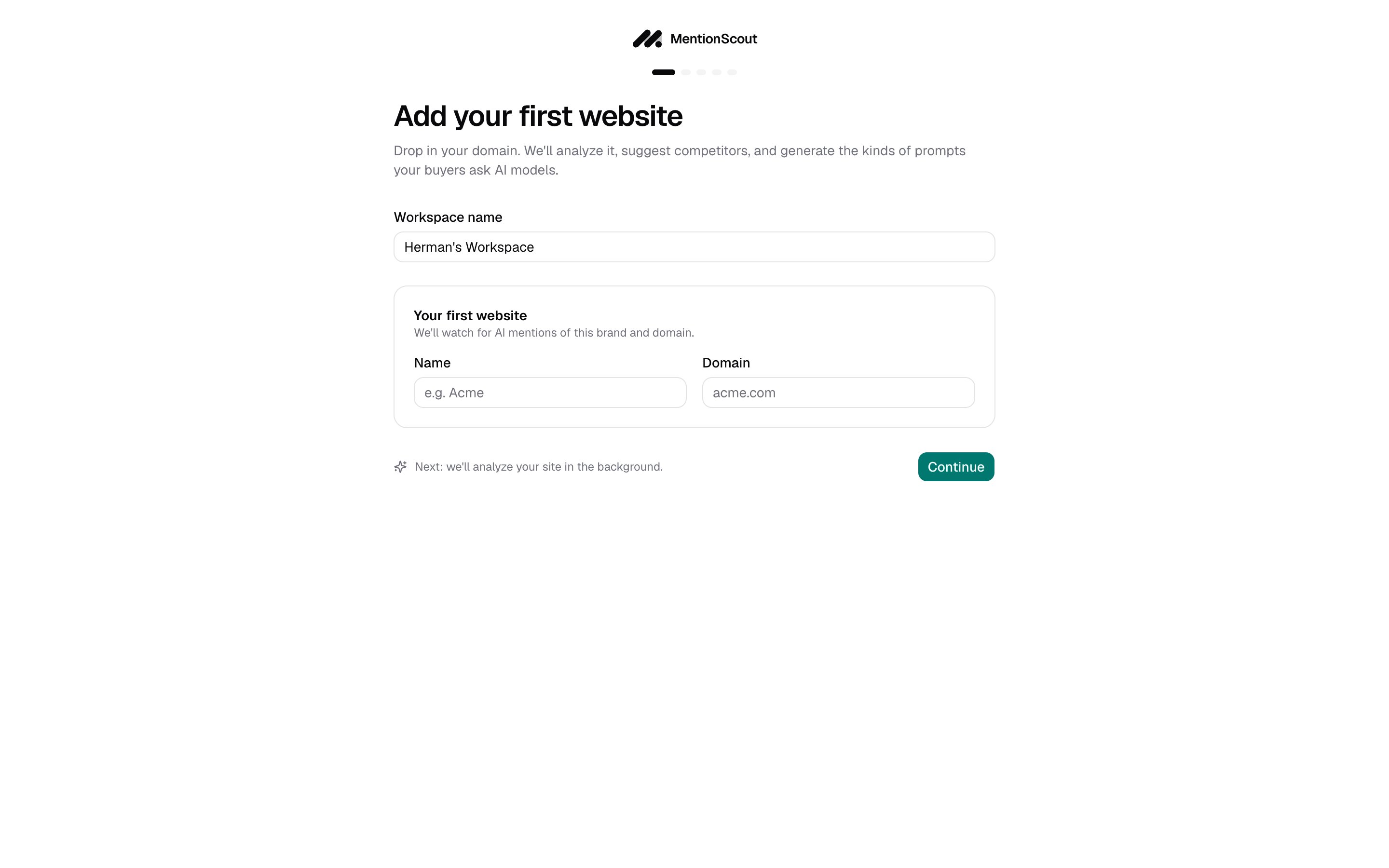
The **Workspace name** field is pre-filled for you. Keep it or change it. A workspace holds your websites, prompts, and results.
Under **Your first website**, fill in **Name** (for example `Acme`) and **Domain** (for example `acme.com`). This is the brand and domain MentionScout watches for in AI answers.
Click **Continue**. MentionScout creates the website and starts analyzing it in the background.
You only add one website here. You can add more later from **Setup**.
## Let MentionScout analyze the site
After you click **Continue**, an **Analyzing your website** dialog appears while MentionScout reads your homepage and drafts a brand profile. This usually finishes in 30 to 60 seconds, and the page advances on its own when each stage completes.
If a stage runs long, the dialog shows the elapsed time and a **Restart this step** button. If analysis fails outright, you can **Retry**, fill the details in by hand, or **Skip** the step and continue.
## Confirm your brand details
When the analysis finishes, the **Brand** form opens, pre-filled with what MentionScout found. Review and adjust:
* **Brand name** and **Brand aliases**, the alternative names or spellings that should also count as a mention.
* **Short description**, **Industry**, **Tone of voice**, and a longer **Description** used to generate competitor and prompt suggestions.
* **Key features**, at least three specific things your product or service does.
* A **Persona** describing your ideal customer (name, description, age range, and education level), which sharpens the prompt suggestions.
When the details look right, click **Save & find competitors**. MentionScout then suggests competitors in the background.
You can revisit every one of these fields later from the [Brand Hub](/setup/brand-hub).
## Review competitors
The **Competitors** step lists the rivals MentionScout suggested. Each row has a competitor name and an optional domain.
* Edit, remove, or add rows. Click **Add competitor** for each new one.
* For best results, list at least five competitors.
Click **Save & generate prompts** to continue. MentionScout drafts prompts based on your brand and competitors.
## Confirm your prompts
The **Prompts to monitor** step lists the questions your customers ask AI models. List at least three. For each prompt you can set two tags:
* **Type**: `Organic`, `Competitor comparison`, or `Brand specific`.
* **Intent**: `Informational`, `Commercial`, `Branded`, `Comparison`, `Transactional`, or `Local`.
Edit the wording, click **Add prompt** to write your own, and remove any you do not want. When you are happy, click **Finish setup**.
## What happens next
Finishing setup takes you to the **Dashboard**. Your prompts are scheduled to run daily, and as those runs complete, results fill in across the **AI Visibility** section of the sidebar:
* **Runs** records each time a prompt is sent to the AI models.
* **Mentions** shows where your brand was named in those answers.
* **Citations** shows which pages the models linked to.
The mental model behind prompts, runs, mentions, and citations.
Refine the brand profile that powers your suggestions.
Manage the questions MentionScout runs against the AI models.
See each prompt run and the answers it returned.
## What you set up
Onboarding runs in five steps, shown as a progress bar at the top of each screen. You set up four things:
The brand and domain MentionScout watches for in AI answers.
Names, description, and an ideal-customer persona that sharpen later suggestions.
The rivals you want to compare against in AI recommendations.
The questions your buyers ask AI models, which MentionScout runs on a schedule.
## Add your first website
The **Workspace name** field is pre-filled for you. Keep it or change it. A workspace holds your websites, prompts, and results.
Under **Your first website**, fill in **Name** (for example `Acme`) and **Domain** (for example `acme.com`). This is the brand and domain MentionScout watches for in AI answers.
Click **Continue**. MentionScout creates the website and starts analyzing it in the background.
You only add one website here. You can add more later from **Setup**.
## Let MentionScout analyze the site
After you click **Continue**, an **Analyzing your website** dialog appears while MentionScout reads your homepage and drafts a brand profile. This usually finishes in 30 to 60 seconds, and the page advances on its own when each stage completes.
If a stage runs long, the dialog shows the elapsed time and a **Restart this step** button. If analysis fails outright, you can **Retry**, fill the details in by hand, or **Skip** the step and continue.
## Confirm your brand details
When the analysis finishes, the **Brand** form opens, pre-filled with what MentionScout found. Review and adjust:
* **Brand name** and **Brand aliases**, the alternative names or spellings that should also count as a mention.
* **Short description**, **Industry**, **Tone of voice**, and a longer **Description** used to generate competitor and prompt suggestions.
* **Key features**, at least three specific things your product or service does.
* A **Persona** describing your ideal customer (name, description, age range, and education level), which sharpens the prompt suggestions.
When the details look right, click **Save & find competitors**. MentionScout then suggests competitors in the background.
You can revisit every one of these fields later from the [Brand Hub](/setup/brand-hub).
## Review competitors
The **Competitors** step lists the rivals MentionScout suggested. Each row has a competitor name and an optional domain.
* Edit, remove, or add rows. Click **Add competitor** for each new one.
* For best results, list at least five competitors.
Click **Save & generate prompts** to continue. MentionScout drafts prompts based on your brand and competitors.
## Confirm your prompts
The **Prompts to monitor** step lists the questions your customers ask AI models. List at least three. For each prompt you can set two tags:
* **Type**: `Organic`, `Competitor comparison`, or `Brand specific`.
* **Intent**: `Informational`, `Commercial`, `Branded`, `Comparison`, `Transactional`, or `Local`.
Edit the wording, click **Add prompt** to write your own, and remove any you do not want. When you are happy, click **Finish setup**.
## What happens next
Finishing setup takes you to the **Dashboard**. Your prompts are scheduled to run daily, and as those runs complete, results fill in across the **AI Visibility** section of the sidebar:
* **Runs** records each time a prompt is sent to the AI models.
* **Mentions** shows where your brand was named in those answers.
* **Citations** shows which pages the models linked to.
The mental model behind prompts, runs, mentions, and citations.
Refine the brand profile that powers your suggestions.
Manage the questions MentionScout runs against the AI models.
See each prompt run and the answers it returned.