> ## Documentation Index
> Fetch the complete documentation index at: https://mentionscout.com/docs/llms.txt
> Use this file to discover all available pages before exploring further.
# Brand Hub
> Set up how your brand is detected, and re-analyze your site.
Brand Hub is where you tell MentionScout who you are. The brand profile here drives how your brand is detected in AI answers, and it feeds the competitor and prompt suggestions. Get it right and everything downstream gets sharper.
 ## Opening Brand Hub
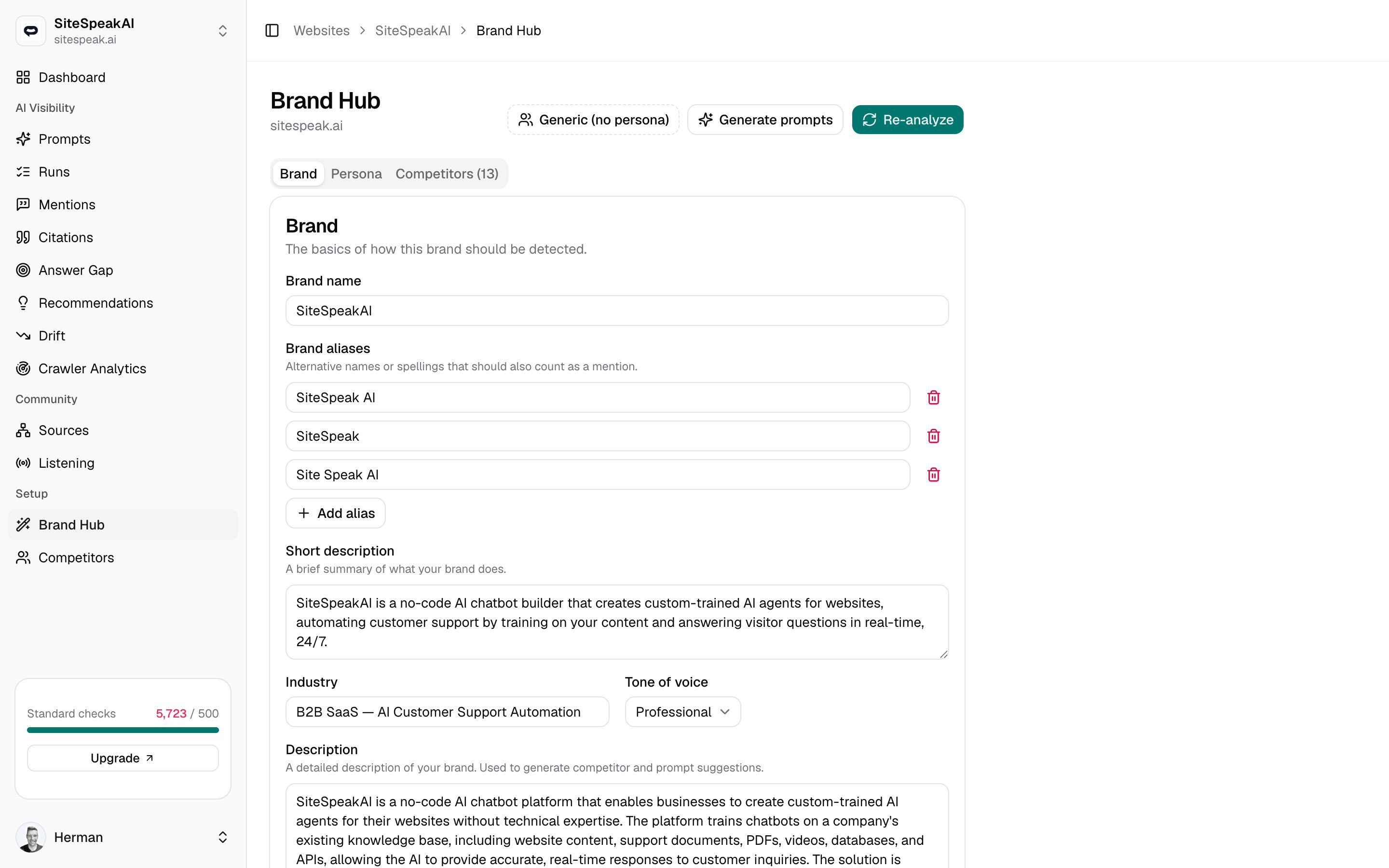
Brand Hub lives at `/websites/{id}/brand`, under **Setup** in the sidebar. The page header shows your domain, and three tabs organize everything:
The core profile: name, aliases, description, industry, and tone.
The audience you sell to, used to shape prompt suggestions.
The brands tracked alongside yours for relative visibility.
MentionScout fills in most of this for you when you first add a brand. Brand Hub is where you review and refine it later.
## Brand tab
The **Brand** tab holds the basics of how your brand should be detected. Edit any field, then click **Save changes**.
| Field | What it does |
| --------------------- | -------------------------------------------------------------------------------------------------- |
| **Brand name** | Your primary name. Required. |
| **Brand aliases** | Alternative names or spellings that should also count as a mention. Add one per row. |
| **Short description** | A brief summary of what your brand does. |
| **Industry** | Your category, for example `B2B SaaS for AI customer support`. |
| **Tone of voice** | Pick one of `Persuasive`, `Professional`, `Friendly`, `Authoritative`, `Casual`, or `Informative`. |
| **Description** | A detailed description of your brand. Used to generate competitor and prompt suggestions. |
| **Key features** | At least three specific features of your product or service, one per row. |
Aliases directly improve mention detection. Add acronyms, common misspellings, your legal entity name, and any product names people use in place of your brand. Your brand name plus every alias form the terms MentionScout matches against AI answers.
To manage aliases or key features, use the list editor under each field. Click **Add alias** or **Add key feature** to add a row, type the value, and use the trash icon to remove a row.
## Persona tab
A persona describes your ideal customer. MentionScout uses it to sharpen prompt suggestions, so the prompts it drafts sound like the questions your real audience would ask an AI.
The **Persona** tab has these fields:
* **Name**: a short label for the audience, for example `Customer Support Manager`.
* **Description**: who they are, what they care about, and the problems they are trying to solve.
* **Age range**: for example `25-45`.
* **Education level**: for example `University degree`.
Edit the fields and click **Save changes**. A good persona description is the single biggest lever on prompt quality.
## Competitors tab
The **Competitors** tab lists the brands MentionScout also detects in AI answers, so you can see your visibility relative to theirs. The tab label shows the current count.
From here you can click **Suggest more** to have MentionScout propose competitors, or **Add competitor** to enter one manually with a name, optional domain, and optional aliases. This is the same competitor list you manage on its own page.
See the full guide to suggesting, adding, and curating competitors.
## Re-analyze your site
Click **Re-analyze** in the header to have MentionScout read your website again and rebuild the brand profile. A progress dialog appears while it works and usually finishes in 30 to 60 seconds.
Re-analyzing overwrites the Brand tab fields and the persona with fresh results. If you have hand-edited your brand name, aliases, description, tone, key features, or persona, those edits will be replaced. Re-analyze when your site has changed substantially, not to tweak a single field.
If an analysis fails, Brand Hub shows a banner explaining what went wrong. You can click **Re-analyze** to try again. The page also notes when your brand was last analyzed at the bottom.
## Generate prompts
Click **Generate prompts** in the header to draft a fresh batch of prompt suggestions from your current brand profile. New, non-duplicate prompts are added to your prompt list and enabled for every AI answer engine your workspace has connected.
Because prompt suggestions are built from the Brand and Persona tabs, save your edits there first, then generate. Review and run the new prompts from the Prompts page.
Review, edit, and run the prompts MentionScout tracks for you.
The end-to-end flow from a new brand to your first results.
## Opening Brand Hub
Brand Hub lives at `/websites/{id}/brand`, under **Setup** in the sidebar. The page header shows your domain, and three tabs organize everything:
The core profile: name, aliases, description, industry, and tone.
The audience you sell to, used to shape prompt suggestions.
The brands tracked alongside yours for relative visibility.
MentionScout fills in most of this for you when you first add a brand. Brand Hub is where you review and refine it later.
## Brand tab
The **Brand** tab holds the basics of how your brand should be detected. Edit any field, then click **Save changes**.
| Field | What it does |
| --------------------- | -------------------------------------------------------------------------------------------------- |
| **Brand name** | Your primary name. Required. |
| **Brand aliases** | Alternative names or spellings that should also count as a mention. Add one per row. |
| **Short description** | A brief summary of what your brand does. |
| **Industry** | Your category, for example `B2B SaaS for AI customer support`. |
| **Tone of voice** | Pick one of `Persuasive`, `Professional`, `Friendly`, `Authoritative`, `Casual`, or `Informative`. |
| **Description** | A detailed description of your brand. Used to generate competitor and prompt suggestions. |
| **Key features** | At least three specific features of your product or service, one per row. |
Aliases directly improve mention detection. Add acronyms, common misspellings, your legal entity name, and any product names people use in place of your brand. Your brand name plus every alias form the terms MentionScout matches against AI answers.
To manage aliases or key features, use the list editor under each field. Click **Add alias** or **Add key feature** to add a row, type the value, and use the trash icon to remove a row.
## Persona tab
A persona describes your ideal customer. MentionScout uses it to sharpen prompt suggestions, so the prompts it drafts sound like the questions your real audience would ask an AI.
The **Persona** tab has these fields:
* **Name**: a short label for the audience, for example `Customer Support Manager`.
* **Description**: who they are, what they care about, and the problems they are trying to solve.
* **Age range**: for example `25-45`.
* **Education level**: for example `University degree`.
Edit the fields and click **Save changes**. A good persona description is the single biggest lever on prompt quality.
## Competitors tab
The **Competitors** tab lists the brands MentionScout also detects in AI answers, so you can see your visibility relative to theirs. The tab label shows the current count.
From here you can click **Suggest more** to have MentionScout propose competitors, or **Add competitor** to enter one manually with a name, optional domain, and optional aliases. This is the same competitor list you manage on its own page.
See the full guide to suggesting, adding, and curating competitors.
## Re-analyze your site
Click **Re-analyze** in the header to have MentionScout read your website again and rebuild the brand profile. A progress dialog appears while it works and usually finishes in 30 to 60 seconds.
Re-analyzing overwrites the Brand tab fields and the persona with fresh results. If you have hand-edited your brand name, aliases, description, tone, key features, or persona, those edits will be replaced. Re-analyze when your site has changed substantially, not to tweak a single field.
If an analysis fails, Brand Hub shows a banner explaining what went wrong. You can click **Re-analyze** to try again. The page also notes when your brand was last analyzed at the bottom.
## Generate prompts
Click **Generate prompts** in the header to draft a fresh batch of prompt suggestions from your current brand profile. New, non-duplicate prompts are added to your prompt list and enabled for every AI answer engine your workspace has connected.
Because prompt suggestions are built from the Brand and Persona tabs, save your edits there first, then generate. Review and run the new prompts from the Prompts page.
Review, edit, and run the prompts MentionScout tracks for you.
The end-to-end flow from a new brand to your first results.