

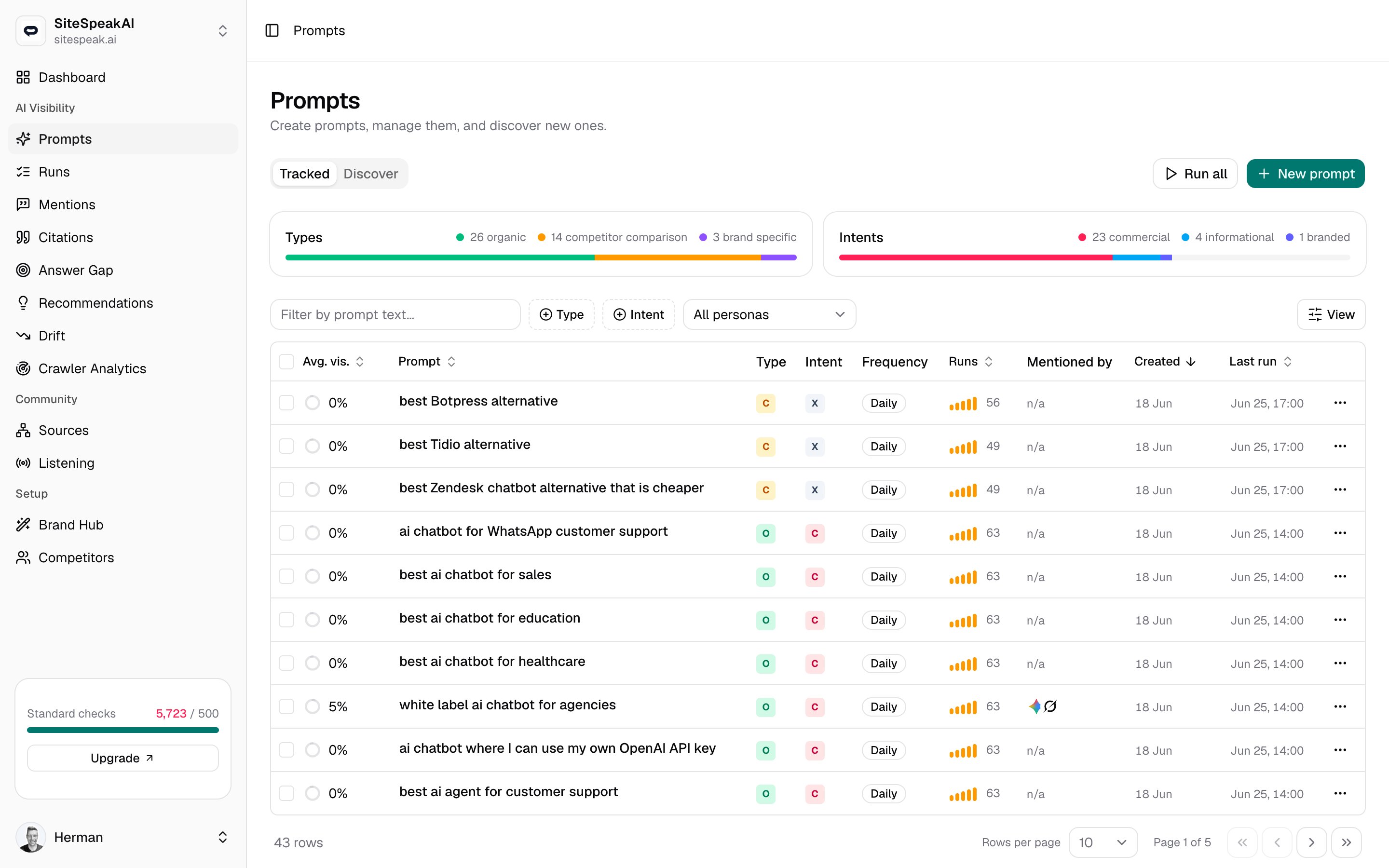
The Tracked tab
The Tracked tab lists every prompt for the current website. Two summary cards above the table break your prompts down by Types and Intents so you can see the mix at a glance. Each row shows the following columns.| Column | What it tells you |
|---|---|
| Avg. vis. | The share of completed runs that mentioned your brand, drawn as a ring plus a percentage. It reads n/a until the prompt has at least one completed run. |
| Prompt | The prompt text, linking to the prompt’s detail page. A Paused tag appears if the prompt is disabled, and an Excluded from stats tag appears if it is left out of visibility scoring. |
| Type | How MentionScout classifies the prompt: Organic, Competitor comparison, or Brand specific. Shown as a colored letter; hover to read the full label. |
| Intent | The buyer intent behind the prompt: Commercial, Informational, Branded, Comparison, Transactional, or Local. |
| Frequency | How often the prompt runs automatically. |
| Runs | How many times the prompt has run. |
| Mentioned by | The answer engines that have mentioned your brand for this prompt, shown as stacked logos. |
| Created | When you added the prompt. |
| Last run | When the prompt last ran, or Never. |
Create a prompt
Click New prompt to add a question. You need a current website selected first; if you have none, the page prompts you to add one.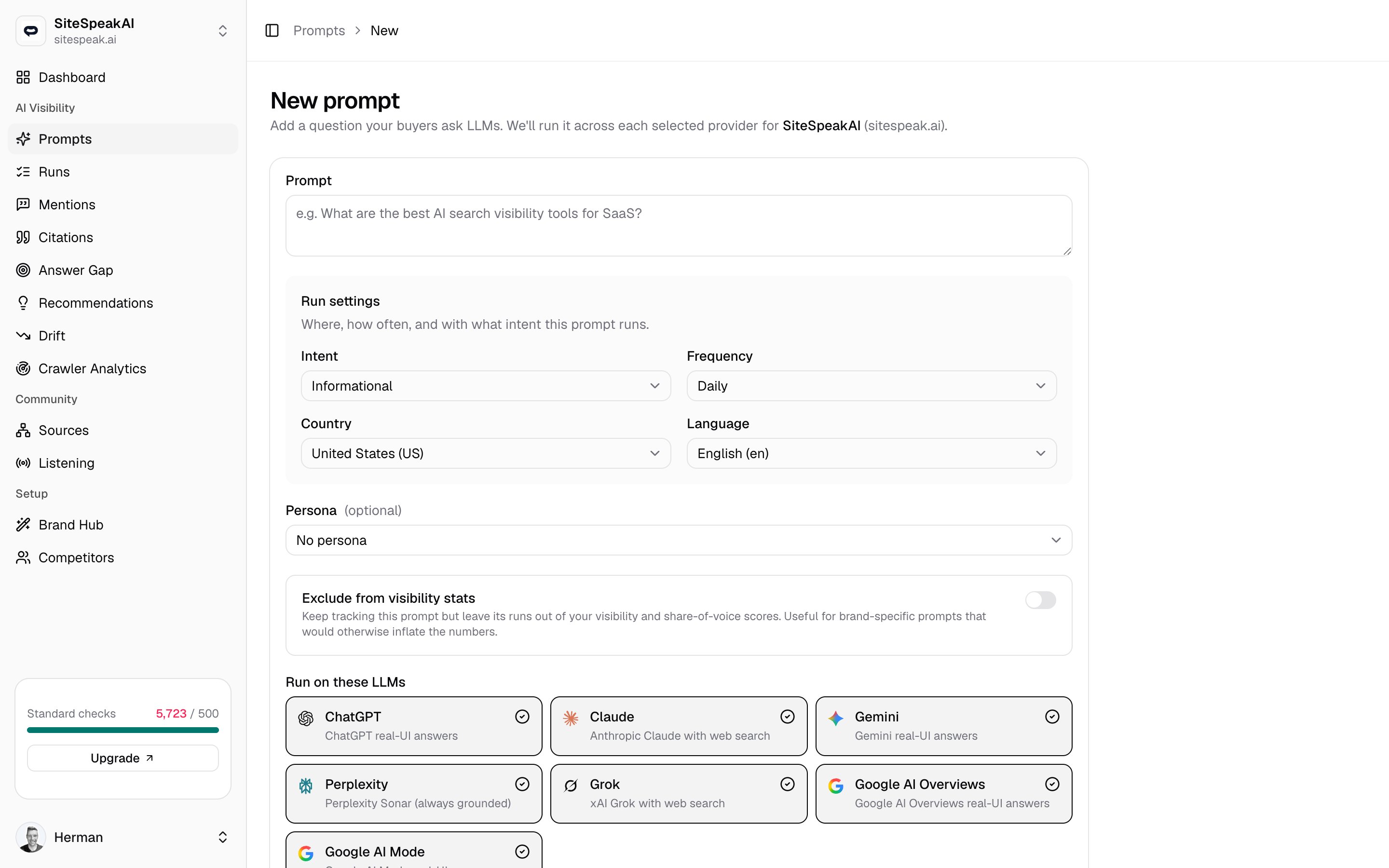
Write the prompt
Enter the question in the Prompt field, phrased the way a real buyer would ask an AI assistant. For example,
What are the best AI search visibility tools for SaaS?Set the run settings
Choose the Intent, Frequency, Country, and Language for the prompt.
- Intent records the buyer intent (Informational, Commercial, Branded, Comparison, Transactional, or Local) and powers the filters and summary cards.
- Frequency controls how often the prompt runs on its own: Daily, Weekly, Monthly, or Manual only (never runs automatically).
- Country and Language set the locale the prompt runs for, so you can track localized answers.
Choose whether it counts toward visibility
Leave Exclude from visibility stats off for normal prompts. Turn it on for prompts that almost always mention you (such as brand-specific questions) so they do not inflate your scores. See Exclude brand-specific prompts below.
Pick the answer engines
Under Run on these LLMs, select which engines this prompt runs against (for example ChatGPT, Claude, Gemini, Grok, Perplexity, AI Overviews, and AI Mode). By default, every engine you have connected is selected. An engine without an active key shows a
Needs key badge and cannot be picked.A prompt’s Type (Organic, Competitor comparison, or Brand specific) is classified by MentionScout from the prompt text rather than set on the form. It still drives the Type column and filter.
Edit, pause, and delete
Open a prompt and click Edit (or use Edit in the row menu) to change its text, run settings, visibility, or answer engines. The edit form adds two controls the create form does not have:- An Enabled / Paused switch. A paused prompt stays in your list and keeps its history but stops running automatically.
- A Delete prompt button, with the same confirmation as the row menu.
Run prompts on demand
Scheduled runs follow each prompt’s frequency, but you can also run prompts immediately.- Run now (row menu) runs a single prompt against every engine you have a key for.
- Run all runs every enabled prompt for the current website. Each prompt runs on every connected engine, which queues jobs and consumes API credits.
- Run N selected runs only the prompts you tick (see below), including paused ones.
Filter and find prompts
Use the toolbar above the table to narrow the list:- The Filter by prompt text box matches on the prompt wording.
- The Type and Intent faceted filters let you focus on one or more categories.
- Reset clears any active filters.
- The view options control lets you show or hide columns.
Bulk actions
Tick the checkbox on one or more rows to reveal bulk actions in the toolbar. They apply to every selected prompt at once.Set providers
Set providers
Replaces (does not merge) the answer-engine list on the selected prompts. The picker defaults to every engine you have a key for; engines without a key are disabled. Click Apply to save.
Set frequency
Set frequency
Sets the run frequency (Daily, Weekly, Monthly, or Manual only) on the selected prompts and reschedules their next automatic run.
Visibility
Visibility
Choose Exclude from stats or Include in stats for the selected prompts. They stay tracked and keep running either way; only the scoring changes.
Run selected
Run selected
Runs the selected prompts now on every connected engine. This queues jobs and consumes API credits.
Exclude brand-specific prompts
Brand-specific prompts almost always mention you, so leaving them in your visibility score makes it look higher than it really is. Excluding them gives a truer read of your non-branded visibility, which is where most buyers first encounter you. You can exclude prompts in three ways:- The Exclude from visibility stats toggle on the create and edit forms.
- Exclude from stats in a row’s menu, or the Visibility bulk action for several prompts at once.
- The Exclude branded shortcut, which appears next to Run all whenever you have brand-specific prompts still counted. It excludes them all in one click.
Excluded from stats tag marks them in the list, and your visibility and share-of-voice numbers simply ignore them.
Discover new prompts
The Discover tab surfaces suggested prompts for the current website so you can grow your coverage without writing every question yourself. Review the suggestions and add the ones worth tracking.Discover prompts
Learn how prompt suggestions are generated and how to add them to your tracked list.
Go deeper
Runs
See each individual run, its answer, mentions, and citations.
Query fan-out
Expand a prompt into related sub-queries to mirror how engines branch a question.
Discover prompts
Find and add new prompts suggested for your website.
Mentions
Review every place your brand was named across runs.