

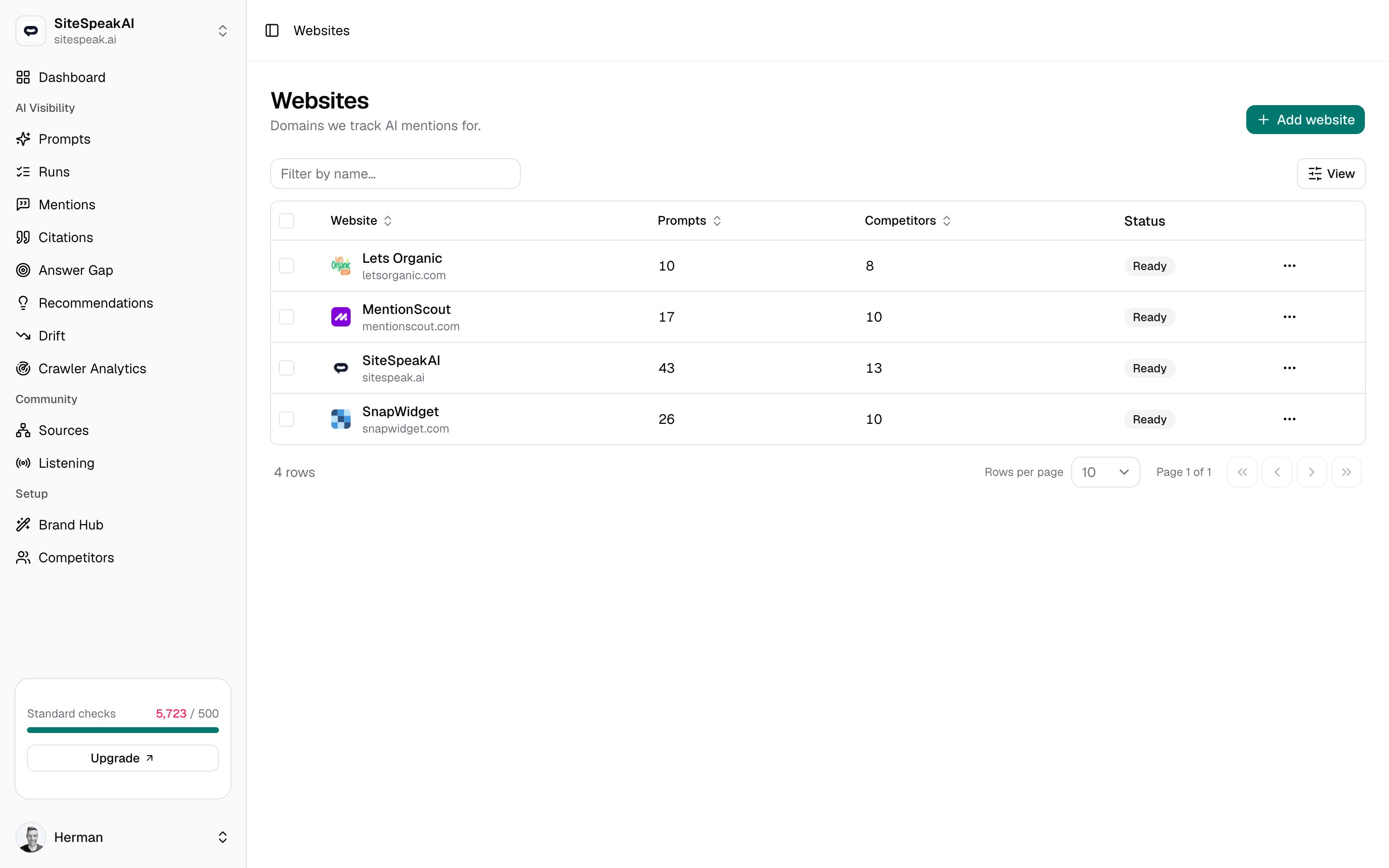
The websites list
Open the website switcher at the top of the sidebar and choose Manage websites to see every website in your current workspace. The table lists:| Column | What it shows |
|---|---|
| Website | The website name and its domain, with a favicon. Click the name to open that website and switch to it. |
| Prompts | How many prompts you track for the website. |
| Competitors | How many competitors you have added. |
| Status | The brand analysis status. |
Ready badge once analysis is complete, Failed if it could not finish, and a progress label (such as Pending) while it runs.
Use the Filter by name box above the table to narrow a long list, and the view options menu to show or hide columns.
Add a website
You can add a website in two ways. The quick add gets you tracking in seconds; the detailed form lets you fill in brand details up front.- Quick add (recommended)
- Detailed add
Click Add website at the top right of the list, or Add website in the website switcher at the top of the sidebar. A dialog asks for just two things.
Enter a name and domain
Type the brand Name (for example
Acme) and its Domain (for example acme.com).Add the website
Click Add website. MentionScout analyzes the site, suggests competitors, and drafts prompts to monitor.
Review in Brand Hub
You land in the Brand Hub onboarding, where the analysis fills in your brand profile, competitors, and starter prompts.
Switch the active website
The website switcher sits at the top of the sidebar and shows your current website. Click it to open a Websites menu listing every website in the workspace, with a check next to the active one.- Select any website to switch to it. The app reloads in that website’s context, so prompts, mentions, citations, and analytics all reflect the new selection.
- Click Add website to open the quick add dialog.
- Click Manage websites to jump to the full list.
You can also switch from the list itself: click a website name, or choose Switch to website from its … menu.
Edit a website
From a website’s … menu choose Edit, or open the Brand Hub for deeper brand settings. The edit form lets you change the Name, Domain, Brand name, Brand aliases, and Description. Click Save changes to apply them; MentionScout makes that website active and takes you to its dashboard so you can see the change.Delete a website
To remove a website, choose Delete from its … menu (or Delete website on the edit form) and confirm. If you delete the website you currently have active, MentionScout switches you to another website in the workspace (preferring one that is alreadyReady). If none remain, add a new website to keep tracking your AI visibility.
Workspaces
A workspace is the container that holds your websites. Every website you add belongs to your current workspace, and the websites list and switcher only show websites from that workspace. When you select a website, MentionScout also moves you into that website’s workspace, so the brand you are viewing and the workspace around it always stay in sync.Related
Brand Hub
Refine the brand profile, aliases, and analysis behind a website.
Competitors
Manage the rival brands MentionScout compares you against.
Prompts
Set up the questions MentionScout runs against AI answer engines.
Quickstart
Add your first website and get tracking end to end.